1. Home

Google Sheets
Facebook Ads to Google Sheets

Pull spend, clicks, results and conversions from every Facebook Ads account you manage into one Google Sheet, and have it refresh itself hourly, daily, weekly or monthly. No code and no CSV exports.

Ratings
No credit card required.
Facebook Ads to Google Sheets UI

Trusted by Agencies and Users Worldwide

How do you connect Facebook Ads to Google Sheets?

Five steps, and you only do them once.

  1. Install SyncWith for Google Sheets.
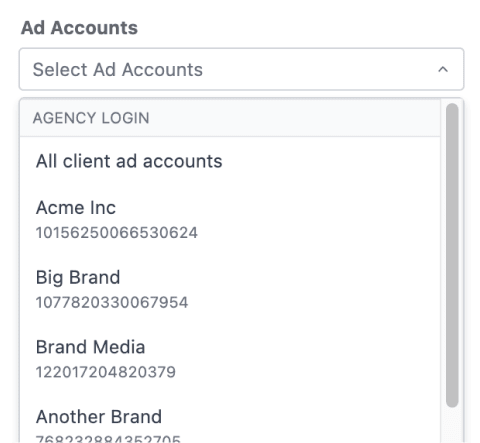
  2. Choose Facebook Ads as the source and sign in with Facebook. One report can take every ad account that login can see, so all your clients fit in one sheet.
  3. Pick your columns: Account name, Campaign name and Day, then metrics such as Amount spent, Link clicks, Results and Cost per result.
  4. Pick a date range, such as Last 30 days, and how new data lands: replace the sheet, add rows below, or update the rows already there.
  5. Set it to refresh hourly, daily, weekly or monthly.

Can you export Facebook Ads data to Google Sheets without an add-on?

Not directly. Meta does have a Google Sheets connection, but it's for lead forms: it adds leads from your Instant forms to a sheet, and you update a lead_status column so Meta learns which leads became customers. Spend, clicks and results don't go through it.

For ad results, Meta's own route is a file. In Ads Reporting you export a report as XLSX or CSV and import it into Sheets yourself, every time you want new numbers. You can also schedule a report by email, but only for one ad account at a time, and only people with access to that ad account can open it.

That's fine for one account and a monthly check-in. With five clients on weekly reports, it's five separate emails or a fresh export every week, pasted in by hand. In SyncWith, it's one report that fills itself in. Want the leads in a sheet too? The add-on has a separate Facebook Leads source.

What each route puts in your sheetThree ways to get Facebook Ads data into Google Sheets. SyncWith for Google Sheets brings spend, clicks and results on a schedule. Meta's Google Sheets connection brings Instant Form leads only. An Ads Reporting export or email gives you a file you import, or one account by email.What each route puts in your sheetSyncWith for Google SheetsSpend, clicks and results, on a scheduleMeta’s Google Sheets connectionInstant Form leads onlyAds Reporting export or emailA file you import, or one account by email
What each route moves, from Meta's help pages and our add-on, November 2026.

How do you automate a weekly Facebook Ads report in Google Sheets?

Keep Account name as a column, so every row says which client it's from. Set the report to refresh weekly and choose add rows, so last week's numbers stay in the sheet when this week's arrive. Then build each client's summary tab on top of that data.

Many people refresh far more often than weekly. In Q3 2026, 15,251 active Facebook Ads reports in SyncWith's Google Sheets add-on and Looker Studio connectors refreshed 1,560,323 times, a little more than once a day each on average.

Is there a free plan?

Yes. The free Hobby plan gives you 35 refreshes a month with no credit card, and a weekly report uses 4 or 5 of them. The Business plan is $24.99 a month for 100 refreshes. See all plans.

Facebook Ads Connector for Google Sheets

Facebook ads UI
Pull it Together

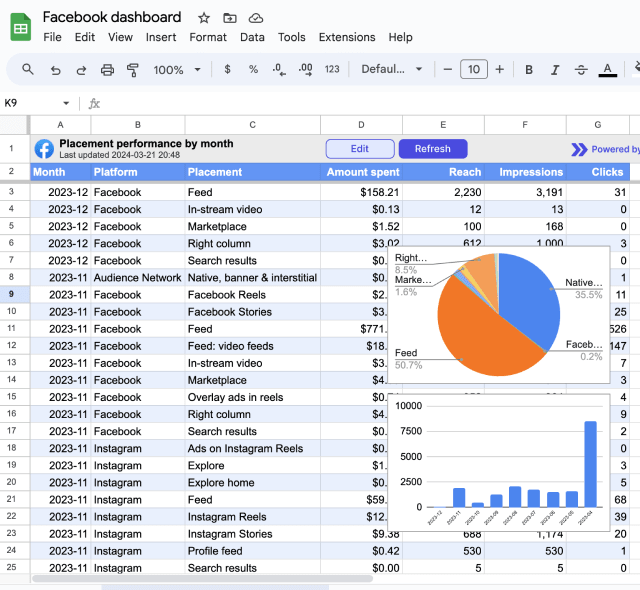
Bring together data from multiple Facebook Ads accounts or campaigns into a single auto-updating report.

Reporting to a client? Read our guide to Meta Ads client reports.

Ad accounts
Track Performance

Stay on top of ad spend and performance, set custom parameters and track results across multiple accounts and channels in one place.

Need a layout to start from? Copy the formulas in our Facebook Ads report template.

Excel Sheet UI
Merge Sources

    Combine Facebook Ads data with other sources to see total ad spend and compare results across channels.

Elevate your Facebook Ads management

Track all your top Facebook Ads metrics in one place! Use Google Sheets to power up your Facebook Ads insights:

TRACK PERFORMANCE
Campaign Performance at a Glance

Report on key metrics of Facebook Ads campaigns for client updates or internal reviews.

Stay on top of:

  • Amount Spent
  • Clicks & Impressions
  • Conversions & Purchases

Group and pivot your reports by levels: Campaign, Ad Set, and Ad or break them down by demographics, country, platform, device, and more.

MANAGE SPEND
Budgets and Pacing

Report on all of your clients at once, get a birds eye view of spend and performance by account.

  • Ensure you’re pacing to hit budget each month
  • Monitor all your clients accounts for issues in one report
  • Build detailed reports per client
ANALYZE CREATIVES
Report on your Creative experimentation

It takes a lot of work to find creatives that work. Use SyncWith to report on your creatives’ performance.

  • View key metrics including CTR, Reach, Conversions, Purchases
  • View and compare creative assets including heading text, images, destination urls and more

Track Facebook Ads Dimensions & Metrics Using SyncWith

Hierarchical Reporting

Explore data across levels: track status, location, balance, spend cap and more.

Dynamic Creative Analysis

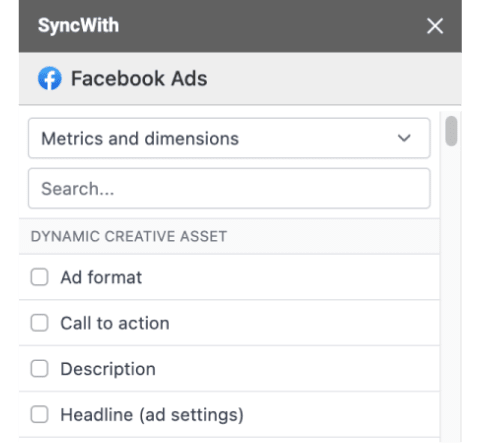
Report on dynamic creative performance: ad format, CTA, image, text, video, URL, and more.

Account Management

Manage single or multiple accounts: account id, name, spend, budget and more.

Engagement Insights

  • Monitor audience engagement: video plays, page likes, reach, and more. Track unique users, clicks, and cost per engagement.
  • Track standard events: purchases, app installs, leads, content views, add to cart, and more.

Ad & Adset Details

Break down data by setup parameters: bid strategy, amount, attribution, start/end times, and more.

Performance Metrics

Analyze results, cost per results, CTR, CPC, clicks, frequency, and reach.

Creative

Pull creative variables into Sheets, including URLs, images, copy, and more.

Delivery Breakdown

Analyze performance by age, country, platform, and more.

How to Install SyncWith for Google Sheets

SyncWith is simple to configure and totally free to try!

Google Sheets logo
Step 1: Connect to Source

Select Facebook Ads as the data source and access your account. Select the information you want to import.

Step 2: Connect to Destination

Select the destination in your Google Sheet and set the desired frequency of automatic updates.

Step 3: Run & Repeat

Save the settings and run your report. Then connect your other top channels to build amazing live dashboards.

Install SyncWith for Google Sheets

One Add-on for All Your Marketing Channels!

See all Google Sheets Connectors
“This tool is fantastic and the support is amazing. I wish I learned about it way sooner. I can easily pull data from our business and show our customers how they can get their data with the tool and they don't even need developers. Love this!”
Andy Nadler
Andy Nadler | Accenture
Start Your Facebook Ads Report Today

Download the SyncWith for Google Sheets Add-on and get started. Get 35 free report refreshes a month. SyncWith’s pricing scales with your needs, up to unlimited refreshes from any service and reports that never expire.

Plans Starting at $24.99/month
Try It for Free

No credit card required.

Are beautiful visual dashboards your specialty?
Explore SyncWith Connectors for Looker Studio